Big Walk: How to Continue a Saved Playthrough (Load Your Save & Re-Invite Friends)
How to resume a Big Walk world you already started: as the host, open Host Game, pick the save you last played, hit Continue, choose the player count, optionally turn on challenge skipping, press Play, then use Session Details to copy the join code, change the password or open moderation settings.
 Big Walk Atlas
Your Big Walk world does not live in a "Continue" button on the title screen — it lives in Host Game, on the save file the host last played. The short version: from the main menu open Host Game, find your save in the list (it is listed with its name and LAST PLAYED date even though the header above it says START A NEW GAME), open it and press Continue, pick the player count (2 Players / 3 Players / 4+ Players), optionally open Accessibility and turn on challenge skipping, then press Play to load straight back into the world you left. Once you are inside, open Session Details to copy the join code and invite your friends again, and use the same panel to change the password or open Moderation Settings. This article describes one recording of that flow — a host loading their own saved world — and it does not test guests joining from another machine or what happens on other player counts.
The resume flow at a glance
- Host Game from the main menu — not Join Game, not a Continue option on the title screen.
- Pick your save. The world you played last is listed by name with a LAST PLAYED timestamp.
- Open it and press Continue.
- Choose the player count — 2, 3 or 4+ — before you load.
- Optionally enable challenge skipping under Accessibility.
- Press Play and land back in your world.
- Open Session Details to copy the join code, change the password, or moderate players.
Before you start
Two things decide whether this works. First, the save belongs to the host: the person who created the world is the one who has to load it, which is the same rule that makes hosting work in the first place — this site's host and join guide covers creating and joining a session from scratch. Second, you need to know where the save is listed, because it is not where the wording suggests: the save you are looking for sits on the Host Game screen, under a heading that reads START A NEW GAME.
The source opens on the title screen and its whole point is that this is the menu you go through: Host Game, Join Game, Settings, Credits, Quit. Only one of those gets you back into a world you already own.
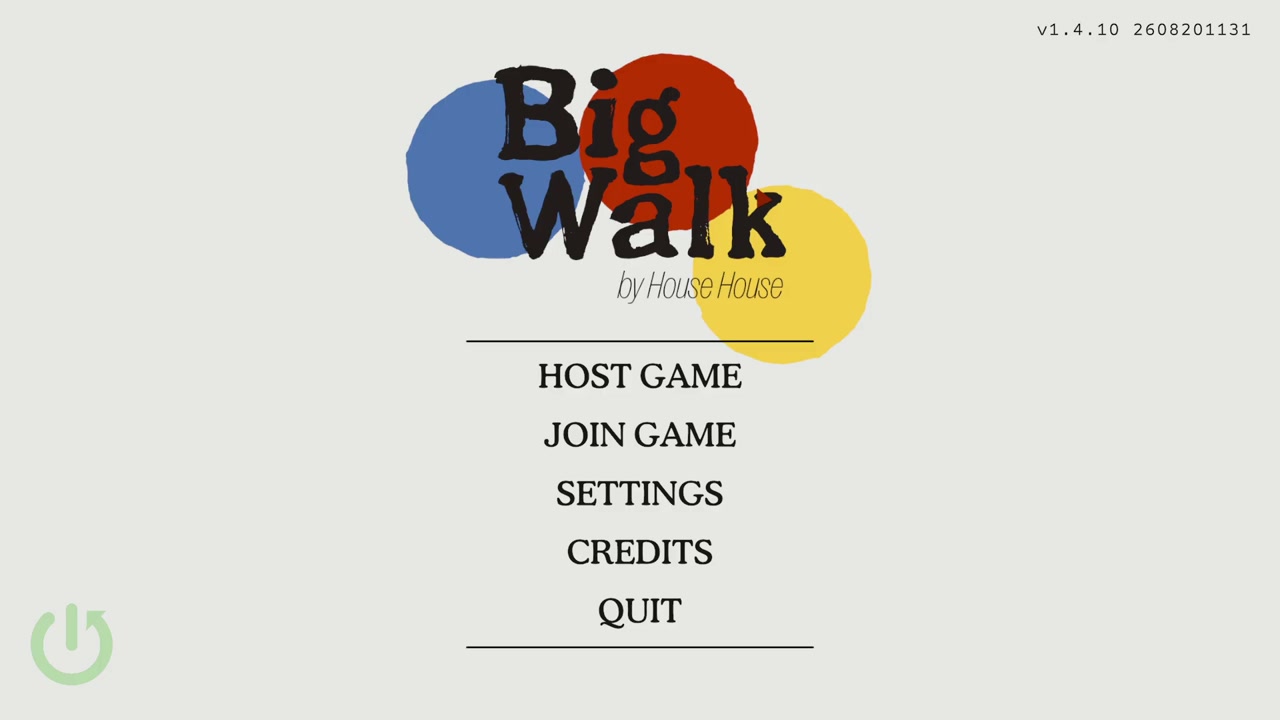
00:14 — the title screen the source starts from: Host Game is the first entry, and it is the one that leads to your saved worlds.
Success check: you are on the main menu and you know that resuming starts with Host Game.
Step 1 — Open Host Game and look under "Start a new game"
Clicking Host Game brings up a screen with START A NEW GAME in the top right and a JOIN CODE in the bottom left. The part that catches people out is in the middle: your existing worlds are listed right there, each with a name and a LAST PLAYED date. In the recording the saved world is called aaaa and carries the timestamp 01:24PM, 24 Aug 2026 — the source explains it as "my test save file I created for the sake of the demonstration."
So do not be put off by the START A NEW GAME header. Your previous world is the named entry below it, and the LAST PLAYED line is how you tell two saves apart. The join code is visible on this screen too, but it is not what gets you back in — that is the save entry itself.
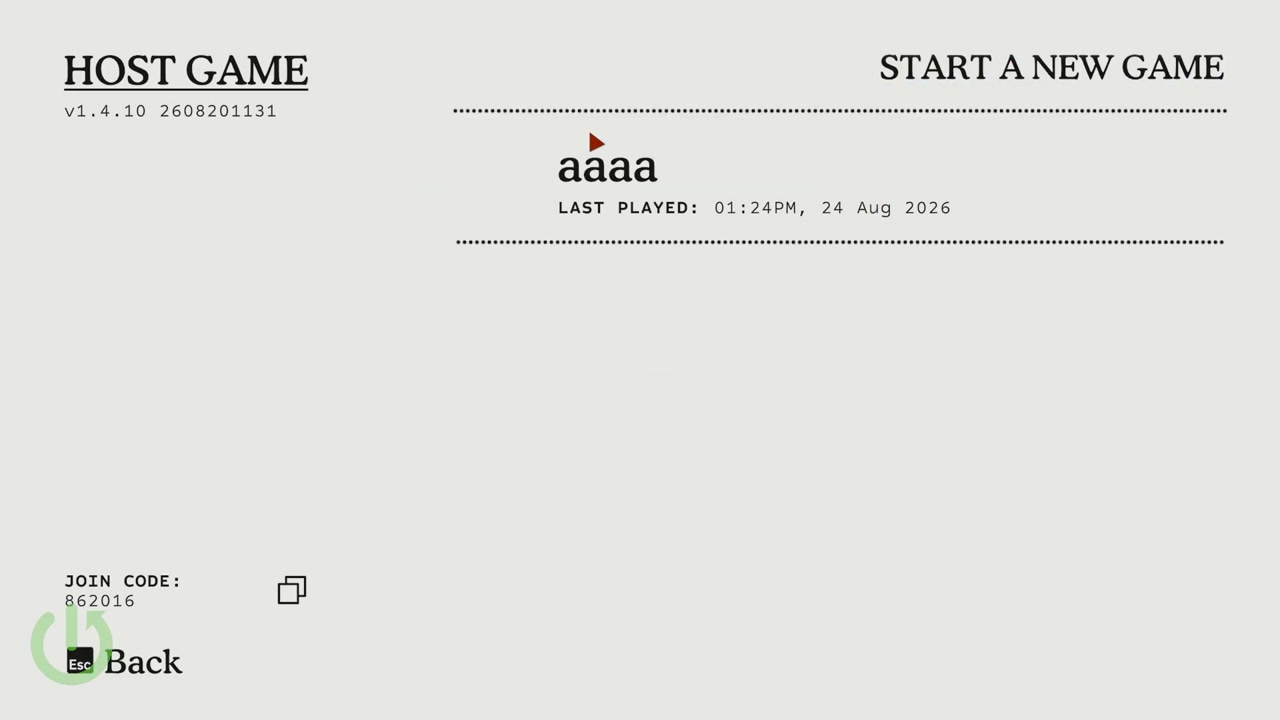
00:20 — the Host Game screen: an existing world is listed by name with its LAST PLAYED date, and the join code sits in the bottom-left corner.
Success check: you can see your saved world listed with a LAST PLAYED date that matches the session you want to resume.
Step 2 — Open the save and press Continue
Select the entry and open it. The save detail screen shows the SAVE FILE NAME, the PASSWORD field (masked), the LAST PLAYED date, a Continue action and a DELETE action. Continue is the one you want; DELETE is permanent and sits right beside it, so read before you click.
This is also where a password-protected world declares itself: the saved file carries a password, which is why the group can rejoin later without changing anything.
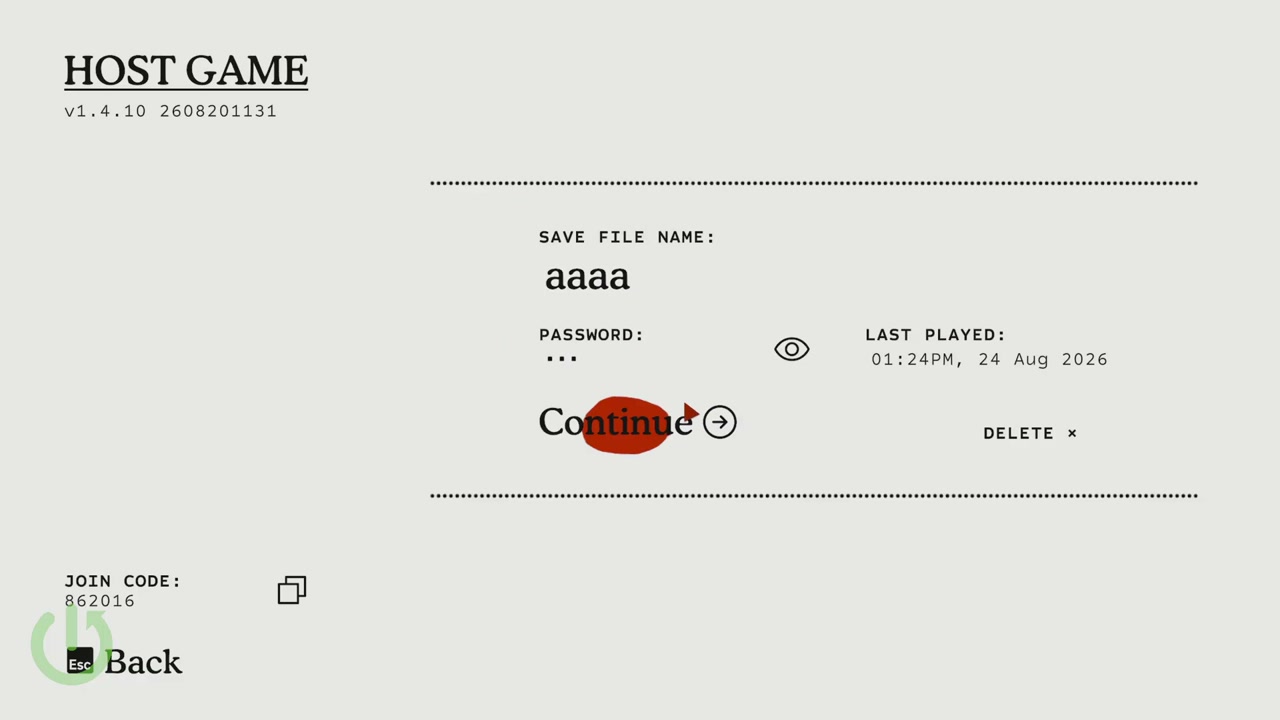
00:32 — the opened save: name, masked password, LAST PLAYED date, and Continue (with DELETE alongside it).
Success check: you pressed Continue on the correct save and the game moved on to the player-count screen.
Step 3 — Choose the player count before you load
Continue leads to WHO WILL BE PLAYING? with three choices: 2 Players, 3 Players and 4+ Players. The screen's own note explains the rule: "This will load a version of Big Walk designed for two players. You won't be able to change this mid-game, but you can switch to a different version anytime by returning to this menu."
Two consequences worth planning around. The count is part of the load, not a lobby setting you can fix later, and it decides which version of the world you get. If your group is three people, load the three-player version now rather than starting on two and hoping to switch; the game's own text says you have to come back to this menu to change it.
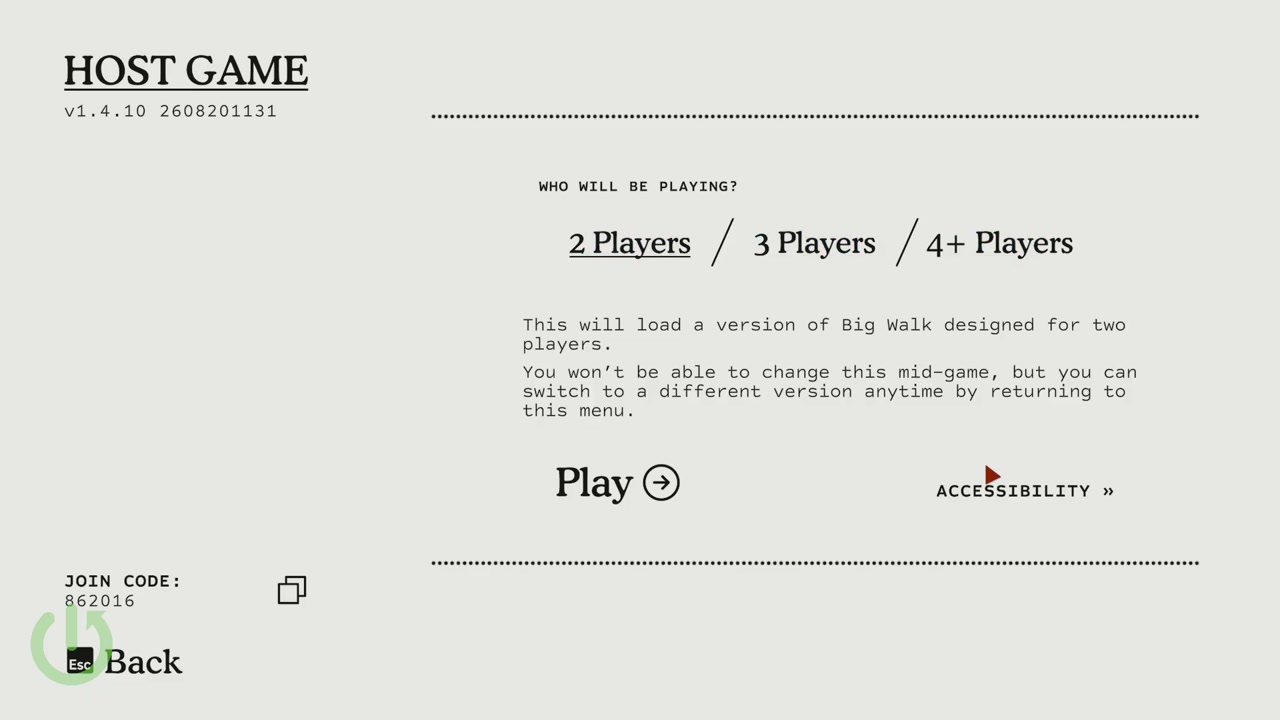
00:40 — WHO WILL BE PLAYING?: the player count is chosen here, before the world loads, and the note under it says it cannot be changed mid-game.
Success check: the player count you picked matches the group you are about to invite.
Step 4 — Optional: turn on challenge skipping
On the same screen there is an ACCESSIBILITY entry. Inside it, one setting matters for a resumed run: ENABLE CHALLENGE SKIPPING, with On and Off. The screen explains what it does — some challenges "require particular abilities to complete, including the ability to hear, speak, react quickly, or use fine motor skills", and enabling the setting lets you "skip any challenge that might otherwise be inaccessible due to differences in ability."
The source shows the option on, then deliberately leaves it off for the demonstration run. Either is valid: it is a per-load choice, so decide as a group before you start rather than mid-session.
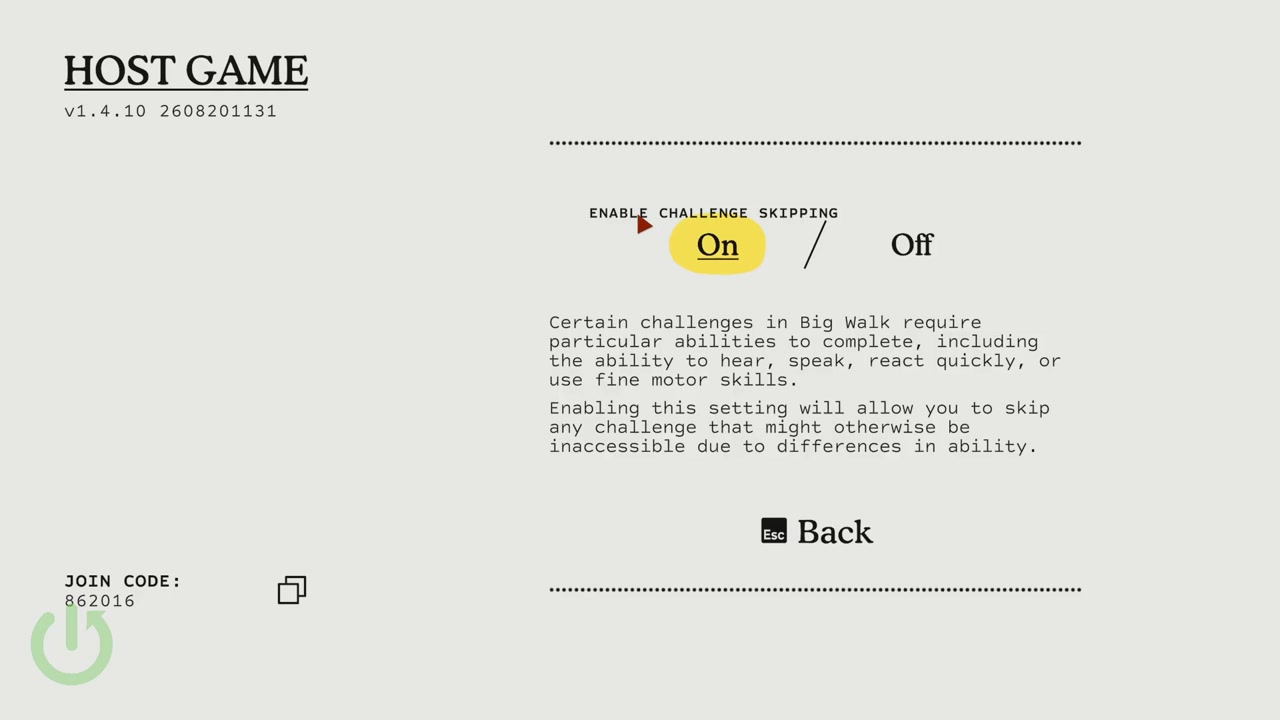
00:46 — the Accessibility screen: ENABLE CHALLENGE SKIPPING is the toggle a resumed world inherits from this menu, and the source leaves it off for its own run.
Success check: you know whether challenge skipping is on for this load, and everyone in the group agrees.
Step 5 — Come back, confirm the count and press Play
Back on the player-count screen, set the version you actually want — in the recording the source moves the selection to 3 Players — and press Play. The game then loads the saved world; no separate "load" step appears anywhere else in the flow.
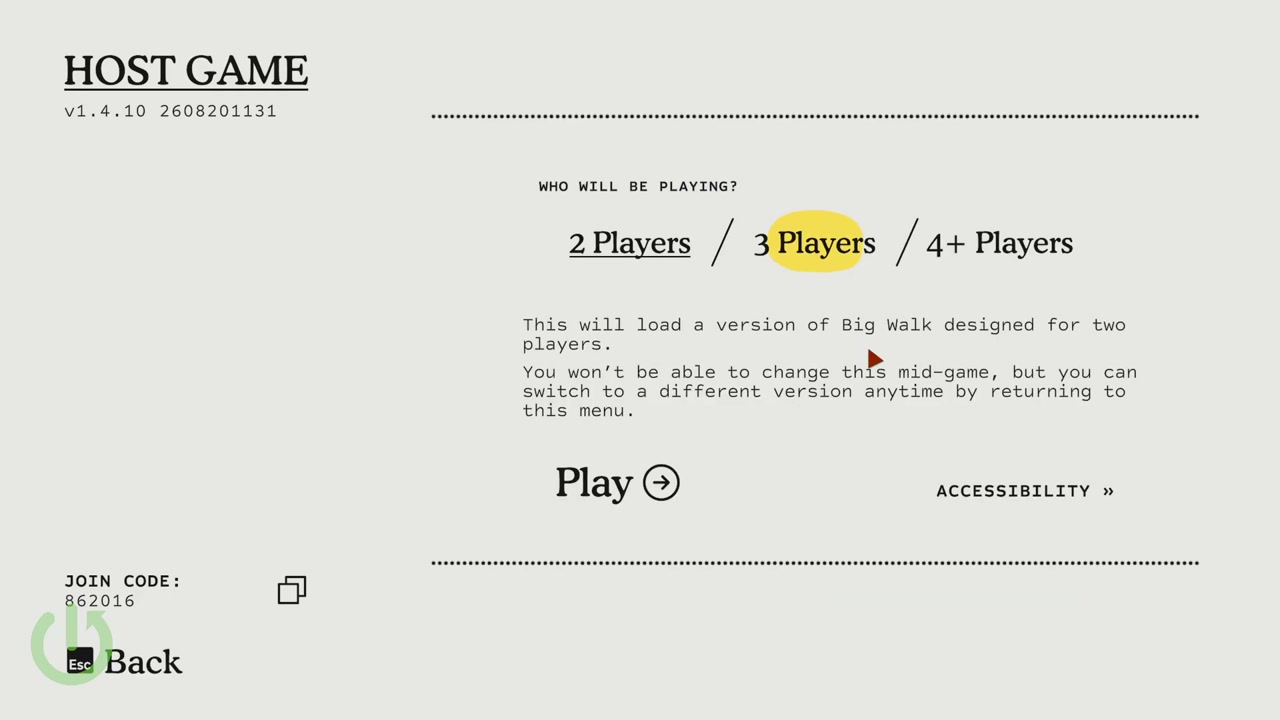
00:52 — the same screen with 3 Players selected, right before Play loads the saved world.
Success check: Play is pressed with the correct count, and the game leaves the menu.
Step 6 — Confirm you are back in your world
The load drops you straight back into the world you left — the recording lands in the red interior area near a tree trunk and a black sphere, exactly the sort of spot you were standing in when the host closed the session. There is no "resume point" prompt to accept: if the save loaded, you are already standing in it.
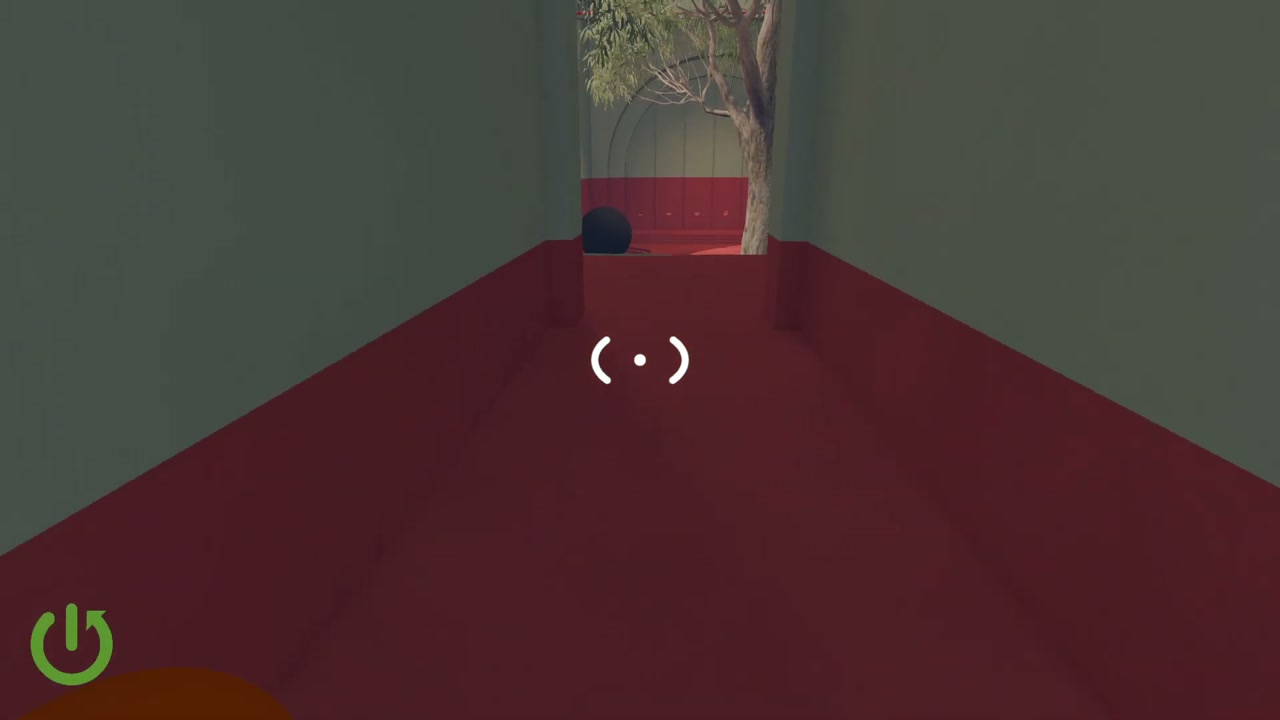
01:14 — the loaded world: the source is back inside the save, in first person, with no additional confirmation step.
Success check: you are standing in the world you left, not at a new-game spawn.
Step 7 — Session Details: copy the join code and get your friends back in
Being loaded is only half of it — the group still has to come back. The in-game Session Details panel is where that happens: it shows the VERSION, the GAME TYPE (in the recording, 3 Players), the SESSION NAME (aaaa) and the JOIN CODE with a copy icon. The source's own order of business is "get session details, copy the join code and invite your friends."
The same panel carries two smaller panels that matter for a resumed world: CHANGE PASSWORD, for when the old password should not be reused, and MODERATION SETTINGS. The moderation panel describes itself as "a last-resort tool to manage difficult players", warns that silencing someone "might make the game effectively unplayable" in a game built on communication, and lists the status icons — speaking, using text chat, playing on another platform, silenced by you, and host.
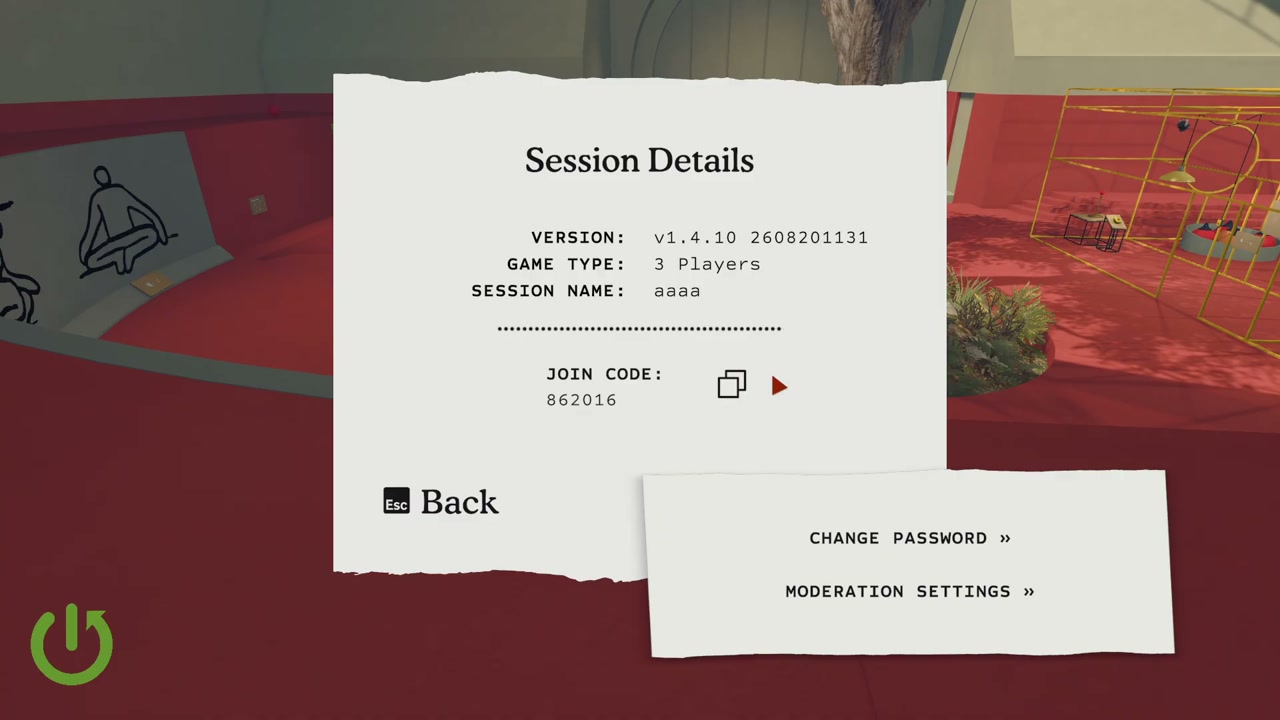
01:20 — Session Details inside the resumed world: version, game type, session name, join code with a copy icon, plus Change Password and Moderation Settings.
Success check: your friends have the current join code and the session's player count matches the group.
Success check
The recording's chain is complete end to end: title screen → Host Game → pick the save by its LAST PLAYED date → Continue → player count → optional challenge skipping → Play → standing back inside the saved world → Session Details to copy the join code and re-invite. If you are back inside the world with a join code in hand, you have resumed correctly.
Common mistakes and recovery
- Looking for a "Continue" on the title screen. There is not one: the menu offers Host Game, Join Game, Settings, Credits and Quit. Your world is behind Host Game.
- Skipping the save list because the header says "Start a new game". The saved worlds are listed under that heading, with their LAST PLAYED dates. Read the list before creating anything new.
- Opening the wrong save. Several worlds can share a page; the LAST PLAYED date is the reliable way to tell them apart.
- Mistaking DELETE for a load button. It sits next to Continue on the save detail screen, and it is not reversible.
- Loading the wrong player count. The count is baked into this load and the game says it cannot be changed mid-game — you have to return to this menu. Reload the correct version rather than playing a mismatch.
- Closing the session and assuming the world is gone. It is not: reload the save, then hand out the join code again from Session Details.
- Losing the join code. Session Details shows it with a copy icon, so re-open the panel instead of asking the host to retype it.
- Silencing someone to "fix" a bad teammate. The moderation panel itself warns this can make a communication-based game unplayable; it is a last resort, not a first move.
Player-count and version notes
- The recording is a solo host loading a saved three-player world: the flow is shown from the host's side, and the source picks 3 Players before pressing Play.
- The video does not show guests joining after the reload. Handing out the join code is demonstrated; the guest side of that handshake is covered by this site's host and join guide.
- The source does not test 2 Players or 4+ Players versions of a resumed world, so this article does not claim what changes between them.
- The source does not show Join Game, save deletion, or multiple saves beyond the one demonstration file, so those paths are left out rather than guessed.
- Join Game from the title screen is a different door: it is for entering someone else's lobby with a code, not for loading your own world.
- The recording shows version v1.4.10 on screen.
- This is a single-source guide: every step comes from one public video's narration and footage, and no second source was used to cross-check it.
Source
This article is a single-source guide synthesized from one public video: Big Walk - How to Continue a Playthrough by HardReset_Pro (youtube.com/watch?v=OxHqOhCe_Lk). Each section maps to a timestamped moment in that recording, and the frames are temporary extracts used only to illustrate the steps, not final artwork. Facts come from the video's own narration and footage; the article does not claim cross-verification against other sources.